

This is a “Hello World!” tutorial that explains how to package a UWP app and install it on another device.
With UWP (Universal Windows Platform), Windows has provided APIs for many functionalities that are essential for wearable devices. For me, Bluetooth is the most important of these.
In principle, these functionalities are also available in WPF applications, but with many Exceptions. Therefore, I think it makes sense to implement GUI applications with functionalities like Bluetooth in the form of UWP apps.
Even though the transition was a bit bumpy after extensive experience with WPF applications, I was able to get used to the basic idea of UWP apps. One stumbling block was creating an .exe for my UWP app. This isn't possible because the basic concept of apps is different. Apps are intended to be distributed via the Microsoft Store.
However, for development, it is necessary to create an executable file that can be run independently of Visual Studio without making it available in the Microsoft Store. To do this, the app must be packaged and then installed. Packaging and sideloading an app are here As described. However, quite a bit more is shown, and I think a short “Hello World!” for packing and sideloading is very helpful. I'm building on that here. “Hello World!” from Windows. After completing the steps described there, this article begins, explaining packaging and sideloading. Recipients of the app only need to complete steps 5 and 6.
1. Create the app
Proceed as described in the “Hello World!” Article described.
2. Create a certificate
For your app to be accepted as trusted, a certificate must be used. In our case, creating our own certificate is sufficient.
To do this, open PowerShell (Windows + R and then type “powershell”) and execute the following command, where the red written parts should be adapted to your requirements:
New-SelfSignedCertificate -Type Custom -Subject "CN=Hello World, O=MedTech Engineer, C=DE"-KeyUsage DigitalSignature -FriendlyName"Hinrich Rahlfs" -CertStoreLocation "Cert:\CurrentUser\My" -TextExtension @("2.5.29.37={text}1.3.6.1.5.5.7.3.3", "2.5.29.19={text}")

For further information I recommend this link.
3. Customize the app manifest
Now Visual Studio needs to be informed about which certificate should be used.
To do this, the app manifest must be opened in Solution Explorer.
Select the “Packaging” menu item here.
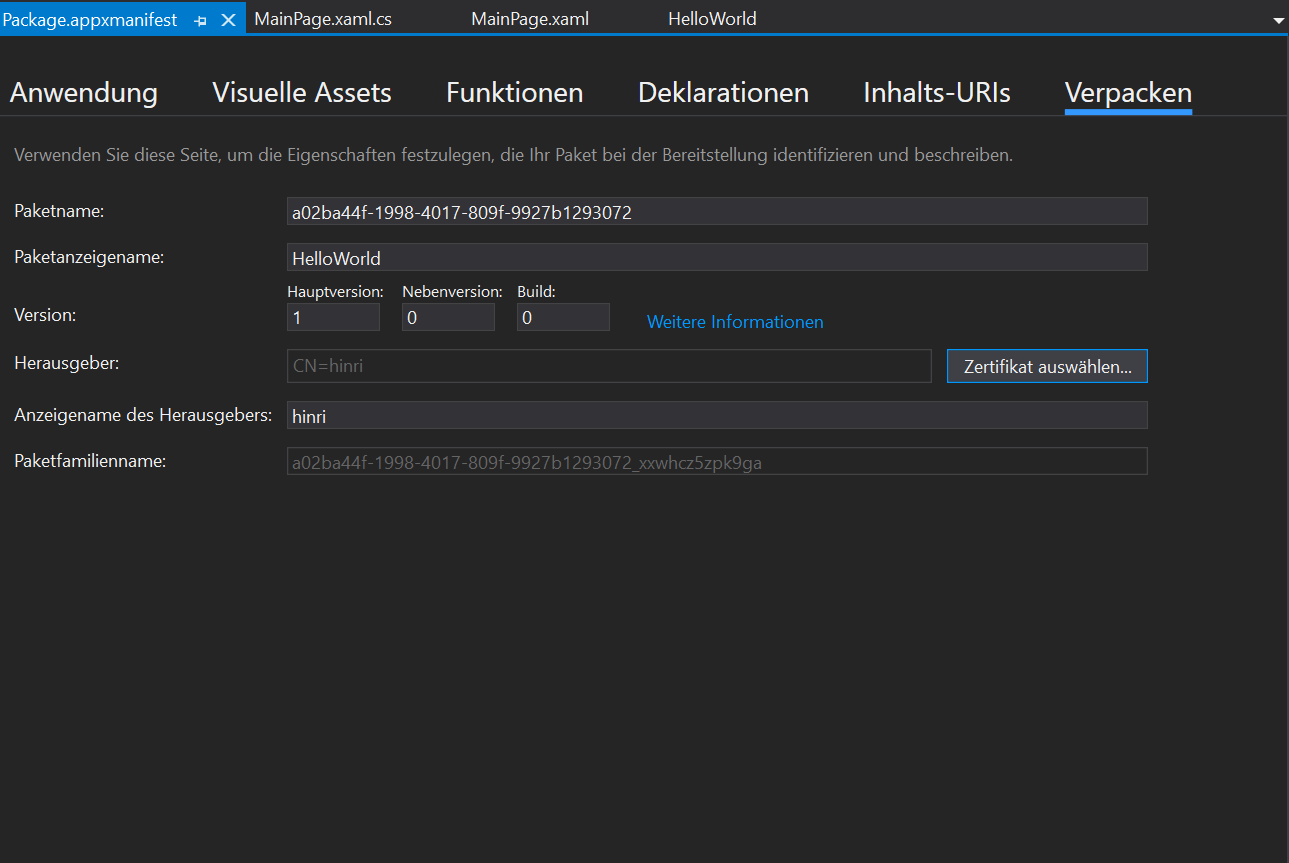
Then go to “Select certificate…” and then to “Select from store…”. In the dialog box that opens, you can now select the certificate you just created.
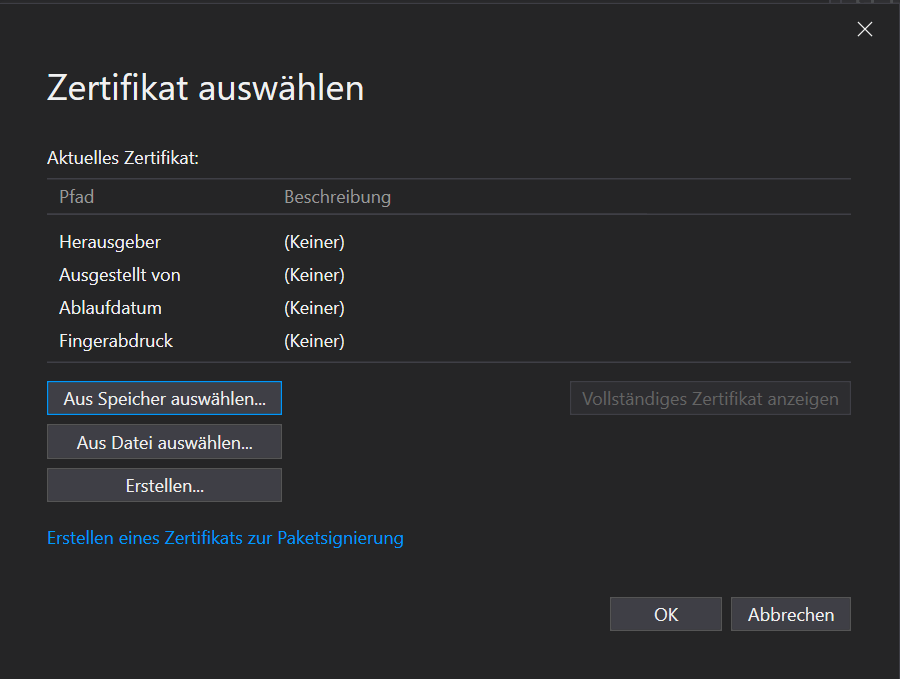
4. Packaging the app
Now everything is ready to package the app. To do this, right-click on the project in the Solution Explorer and select “Publish” (in older versions “Store”) → “Create App Packages…”.


Then, click through the dialog box that opens. In the last dialog box, select “Release”.


Once the app has finished packaging, Visual Studio displays the storage location. This is “…\HelloWorld\HelloWorld\AppPackages\HelloWorld_1.0.0.0_Test”
The app is now fully packaged and can be sideloaded onto another device.
5. Trust the certificate
To sideload the app on another computer, transfer the folder created during packaging to the device on which the app is to be installed.
Then sideloading of apps must be allowed on this device. To do this, activate the developer mode as follows: here described.
Now the app needs to be trusted. To do this, run the certificate file “HelloWorld_1.0.0.0_x86_x64.cer” which is located in the “HelloWorld_1.0.0.0_Test” folder.
Click on “Install certificate…”. Select “Local computer”. Then select “Trusted Root Certification Authorities” as shown in the image.
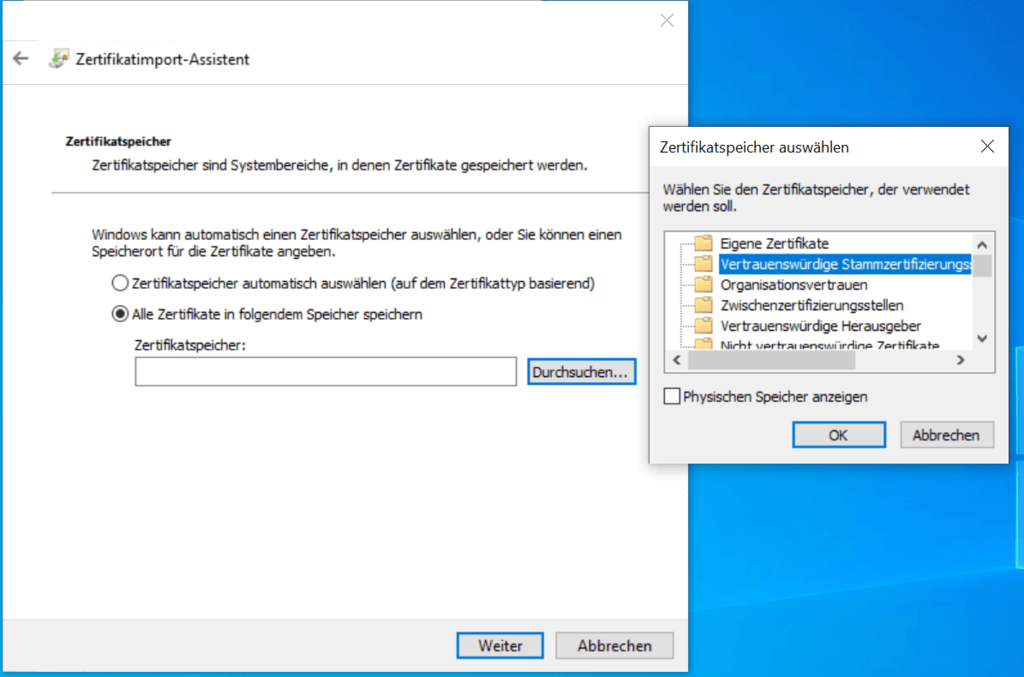
Clicking "next" will install the certificate and allow the app to be installed.
6. Installing the app
Now you just need to install the app. To do this, run the file “HelloWorld_1.0.0.0_x86_x64.msixbundle” and follow the dialog.
The app is now installed and can run independently of Visual Studio.